
Get started: the toolbar, views and settings
Everything in the app starts from the toolbar along the top of the screen. This guide goes through each button, shows you how to move between the views and jump to any date, and where to find the settings.
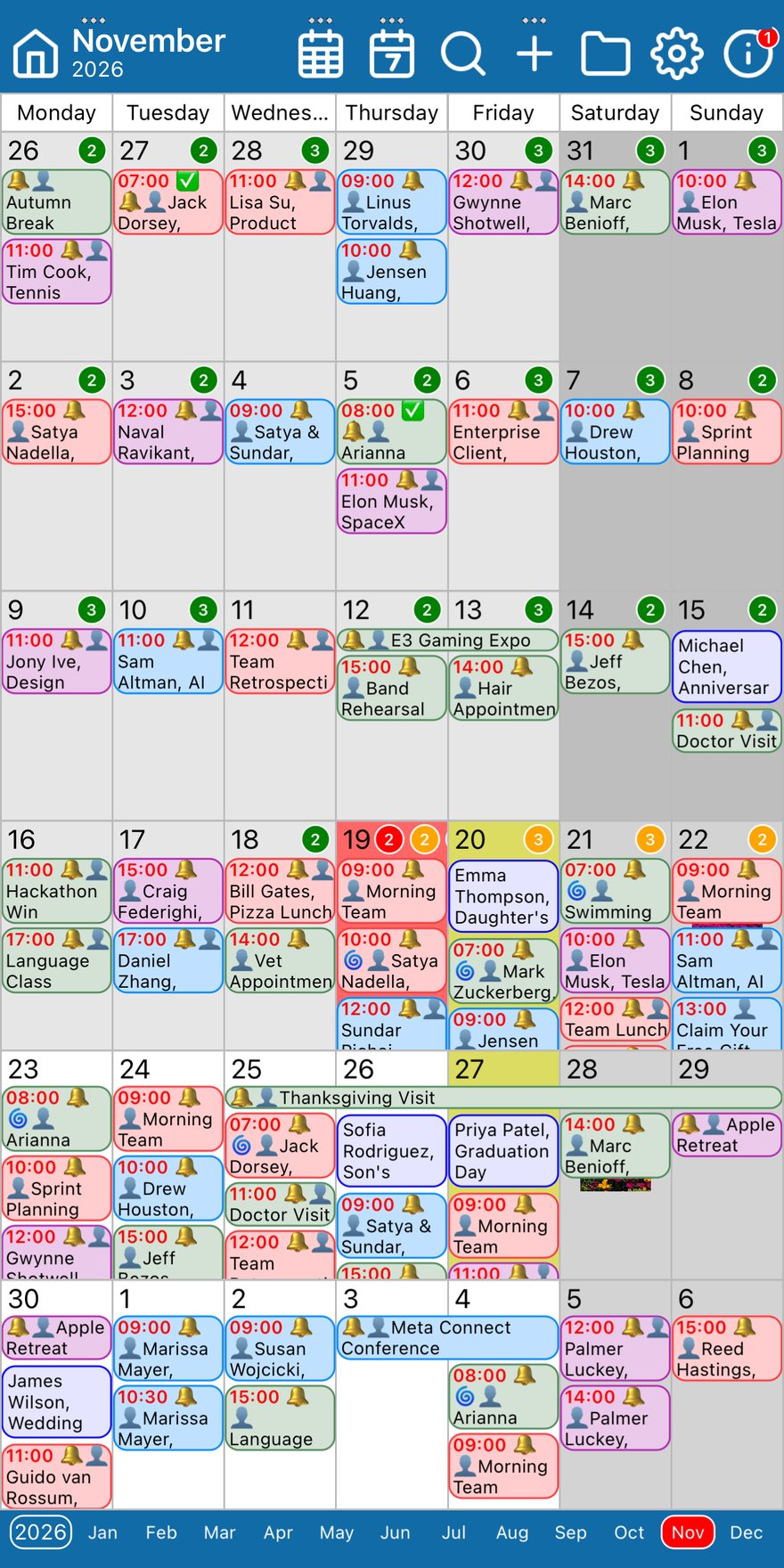
The toolbar

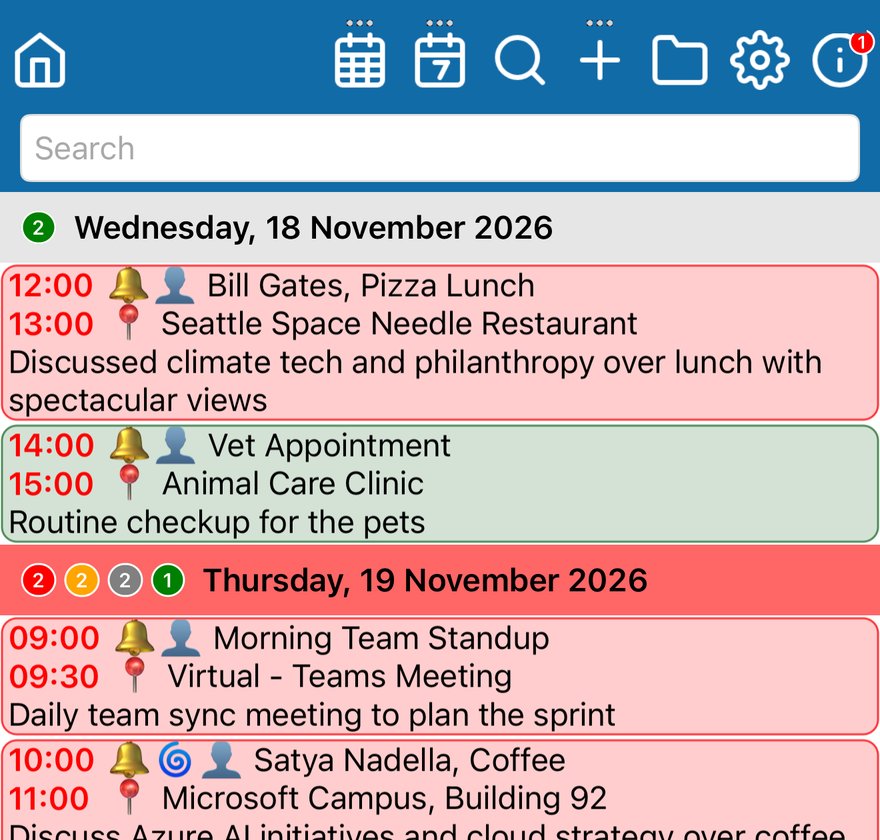
From left to right:
- Home (the house) takes you back to today in the view you are in.
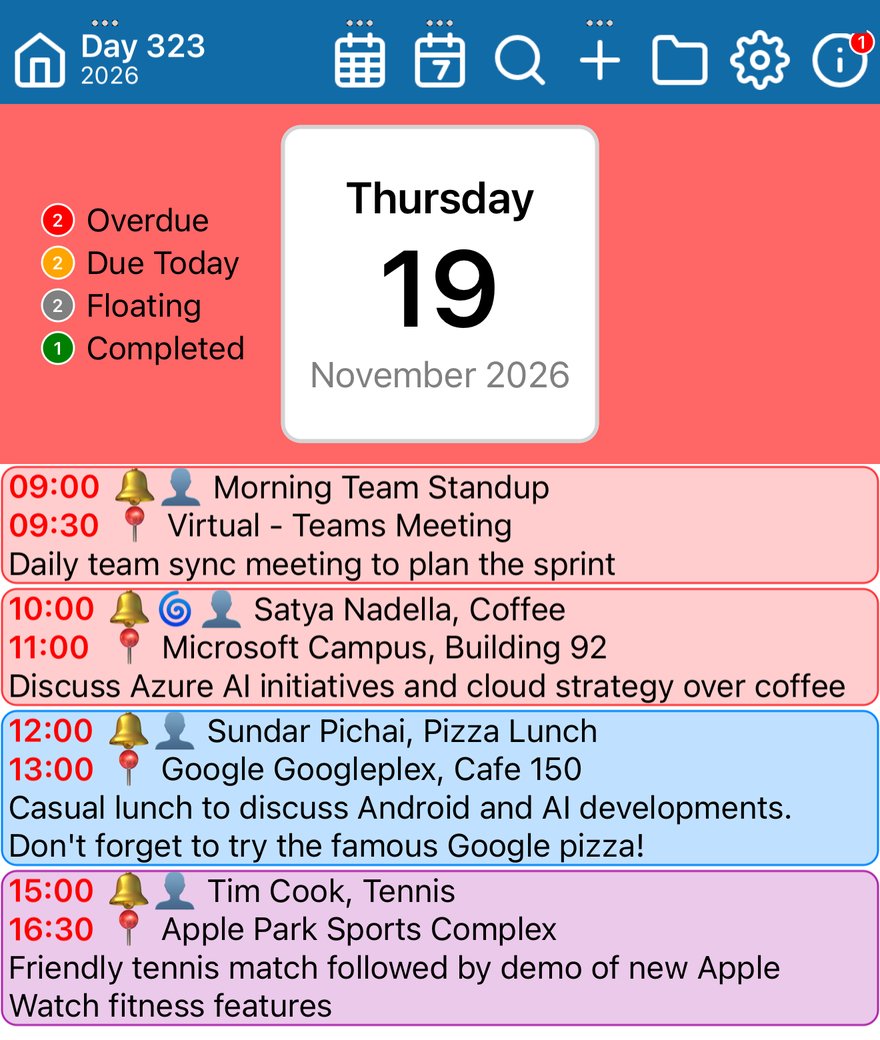
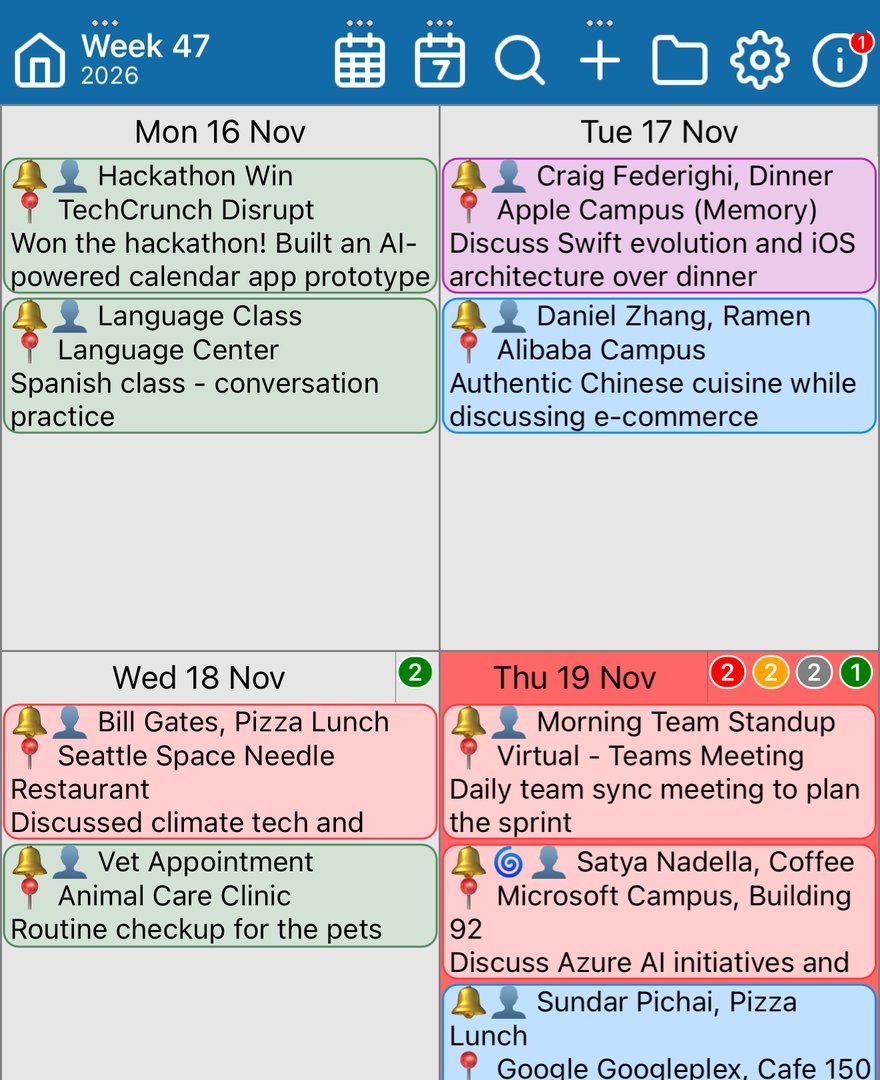
- The title shows where you are: the month and year in the month view, the week number in the week view (Week 47) and the day of the year in the day view (Day 323).
- Month (the calendar grid) opens the month view.
- Week (the calendar with a 7) opens the week view.
- List (the magnifying glass) opens the list view, a list of your events day by day with a search box at the top.
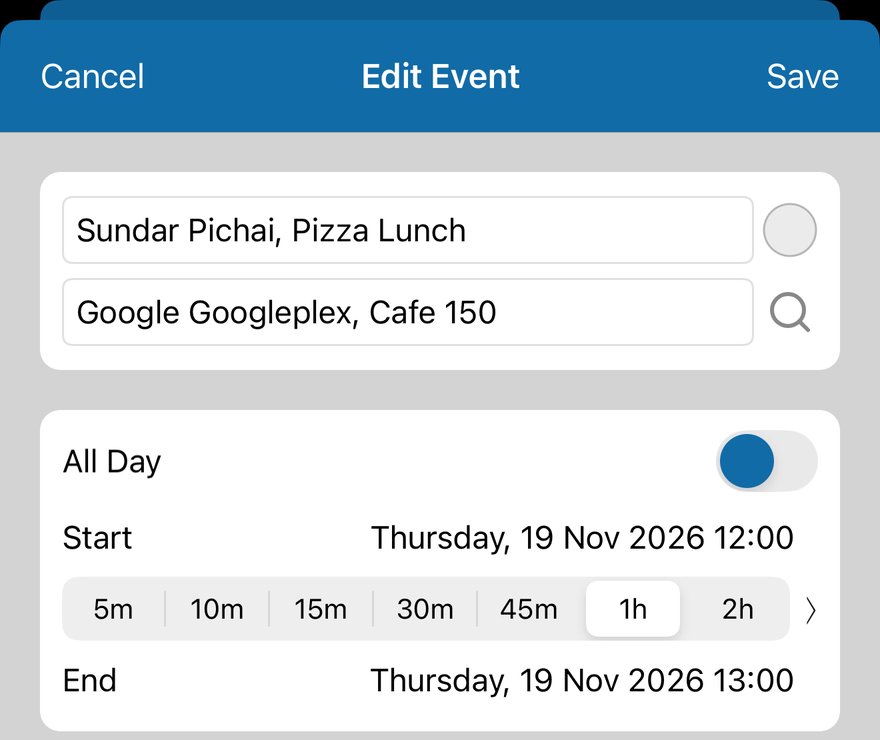
- + adds an event.
- Filter (the folder) chooses which calendars and task lists are shown.
- Settings (the gear) opens the settings.
- Info (the i) opens the app's information page. A red badge on it means an update is ready in the App Store.
What the three dots mean
Three small dots above a button mean it does something else when you touch and hold it. As you hold, the dots light up one by one; when all three are lit, let go.

- Touch and hold the title to open the menu for the view you are in, with Print. See printing the calendar.
- Touch and hold Month to switch to a month view that scrolls week by week, starting with this week. Touch and hold it again to switch back.
- Touch and hold Week to switch between the week view's layouts.
- Touch and hold + to add a task instead of an event.
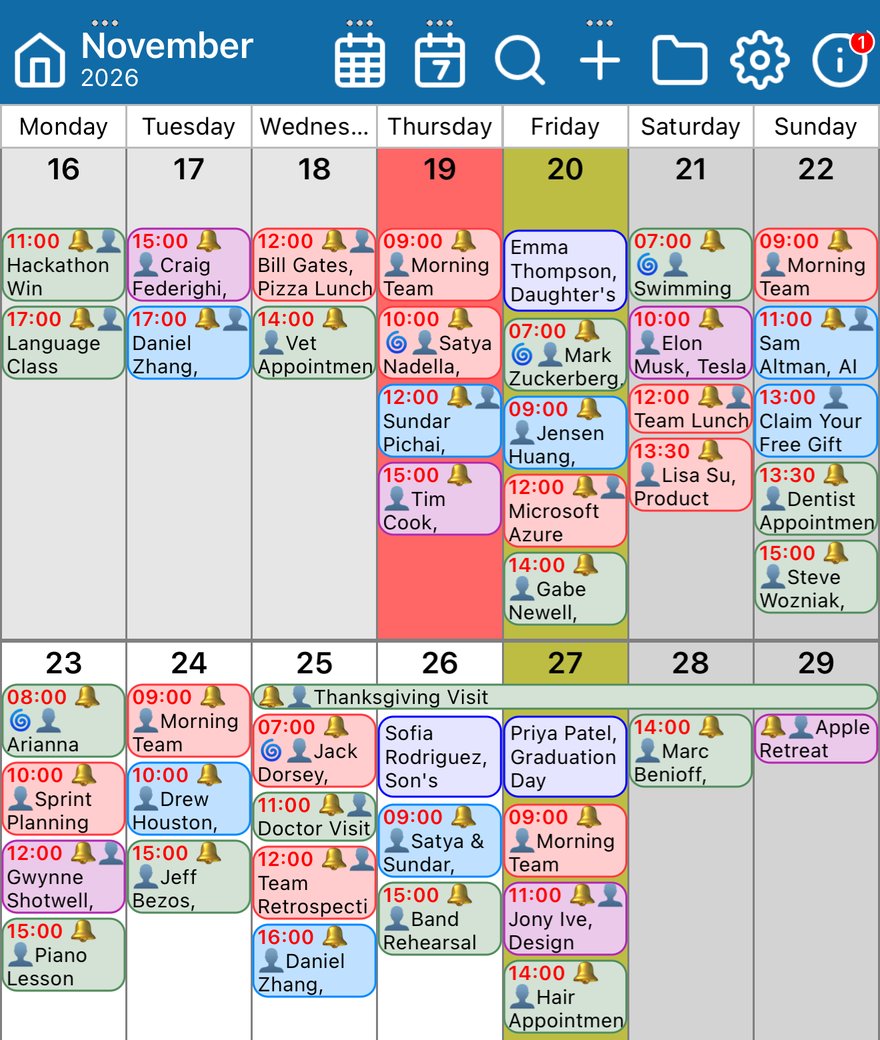
Tapping Month again while you are already in the month view hides Saturday and Sunday, leaving the working week. See the working week.
Move between the views
- Tap Month, Week or List in the toolbar to switch view.
- Tap a day in the month view, or a day's heading in the week view, to open that day in the day view.
- Tap an event to open it and change it.
- Swipe left or right to go to the next or previous month, week or day.
- Tap Home to come back to today.
Jump to any month or year
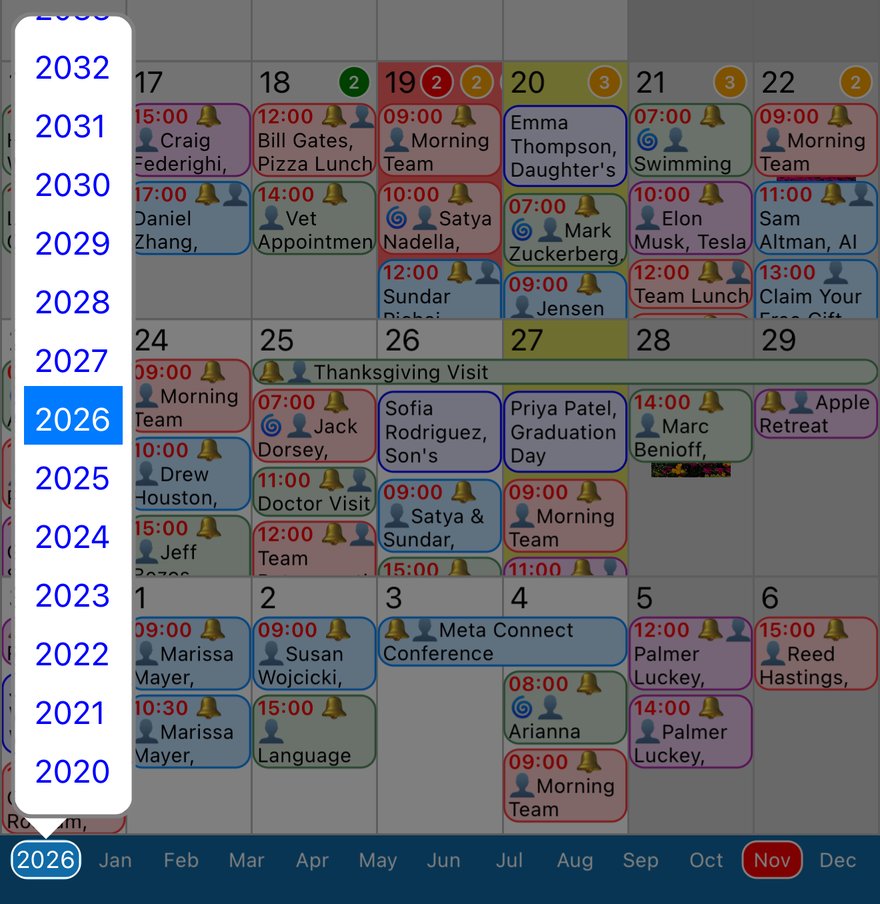
In the month view, the bar along the bottom of the screen shows the months of the year. This month is in red.
- Tap a month to jump to it.
- Tap the year at the left of the bar to choose a different year, then tap the year you want.

Choose which calendars are shown
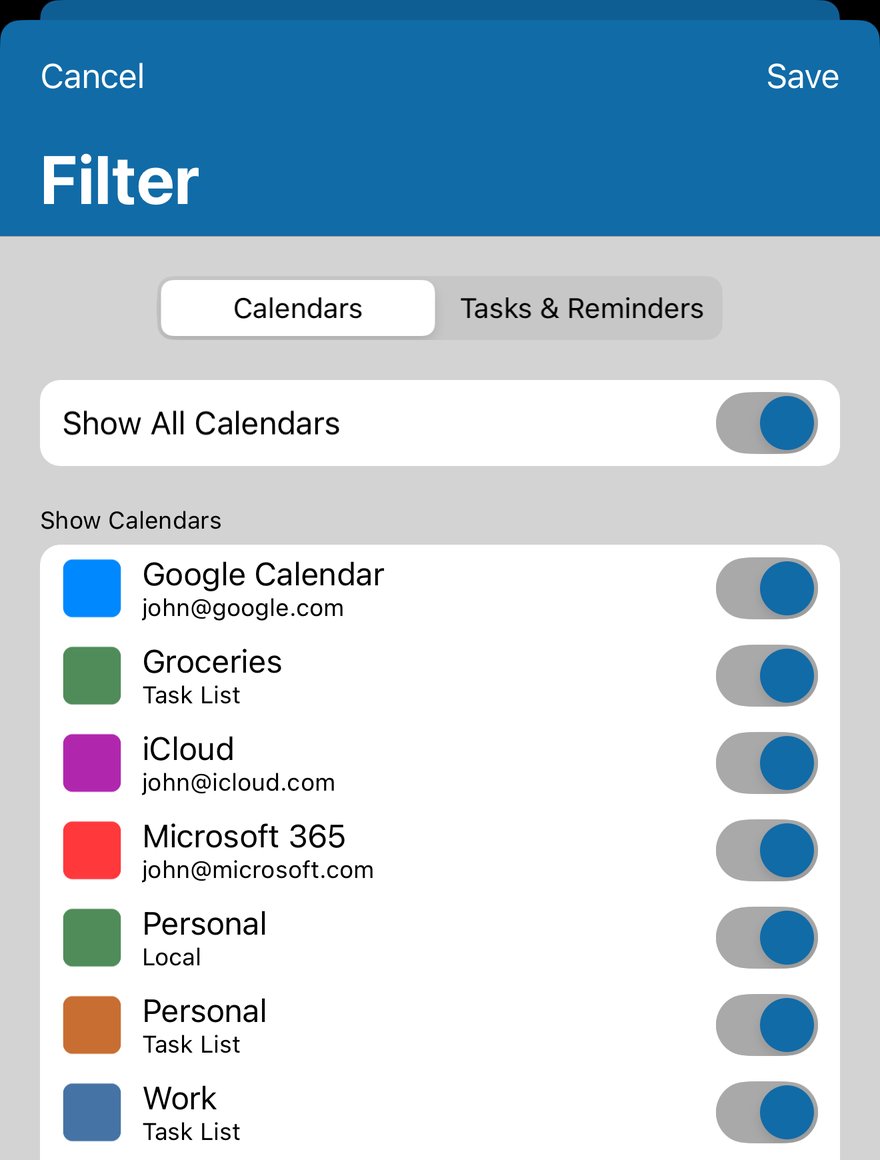
Tap the folder in the toolbar to open Filter. Turn off any calendar you don't want to see, then tap Save. The Tasks & Reminders tab does the same for your task lists. While some calendars are hidden, the folder shows how many are visible.
Open the settings
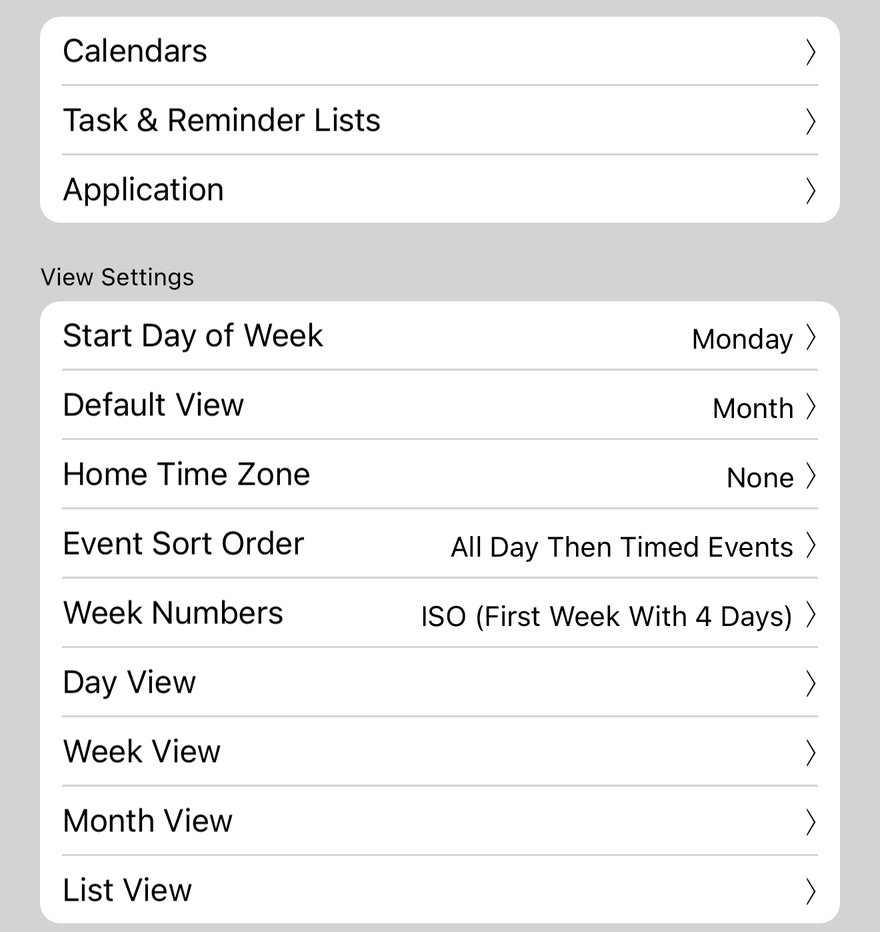
Tap the gear in the toolbar. Calendars, Task & Reminder Lists and Application come first. Under View Settings you can choose the first day of the week, which view the app opens in, and the settings for each view: Day View, Week View, Month View and List View. Tap Done when you have finished.
Good to know
- Touching and holding works on more than the toolbar. Touch and hold an event for its menu (cut, copy, delay, duplicate, share and directions), or a day's number for the day menu (add an event or task, colours and images).
- For tasks and what their coloured counts mean, see tasks and reminders.
More app how to guides.