
Use tasks and reminders in your calendar
Your tasks and reminders appear in the calendar next to your events. You can choose how much of them the month view shows, open a list to see every task, add new ones and tick them off.
What the colours mean
Each count is a coloured circle with the number of tasks in it.
- Red: Overdue. Tasks that are not done and were due before today. They only show on today, so they don't get lost on a day that has gone.
- Orange: Due Today. Tasks due on that day. They show on today and on any day after it.
- Dark grey: Floating. Tasks with no due date. They only show on today, so they are always in front of you.
- Green: Completed. Tasks ticked off on that day. They show on today and on the days before it.
Choose how tasks are shown
- Tap the Settings button (the cog) in the toolbar.
- Under View Settings, tap Month View.
- Under Event Display, tap Tasks & Reminders.
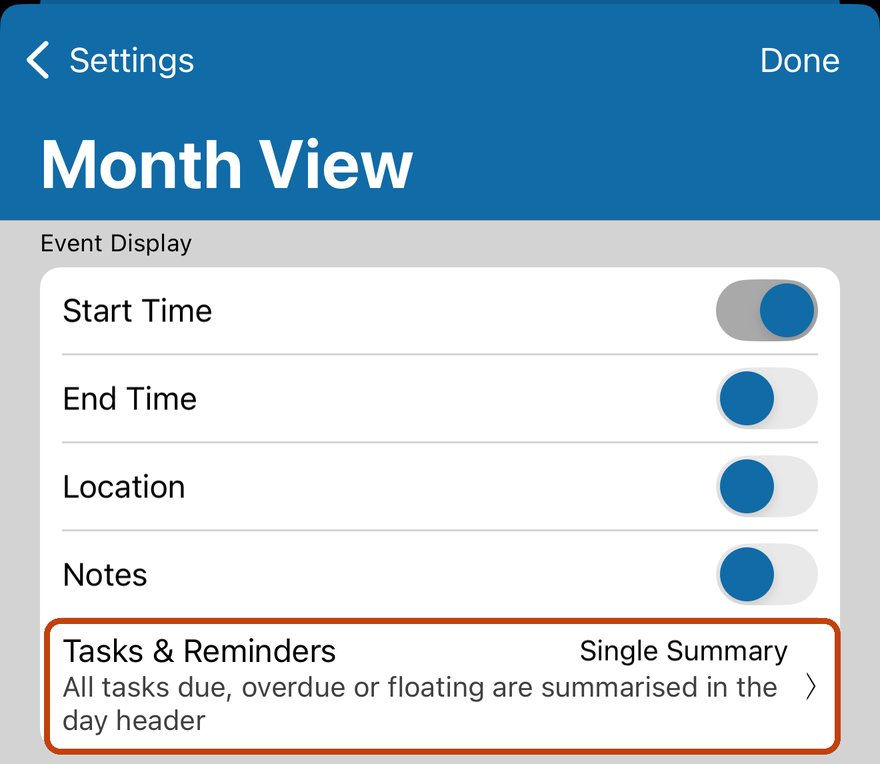
- Pick a layout, then tap Done.
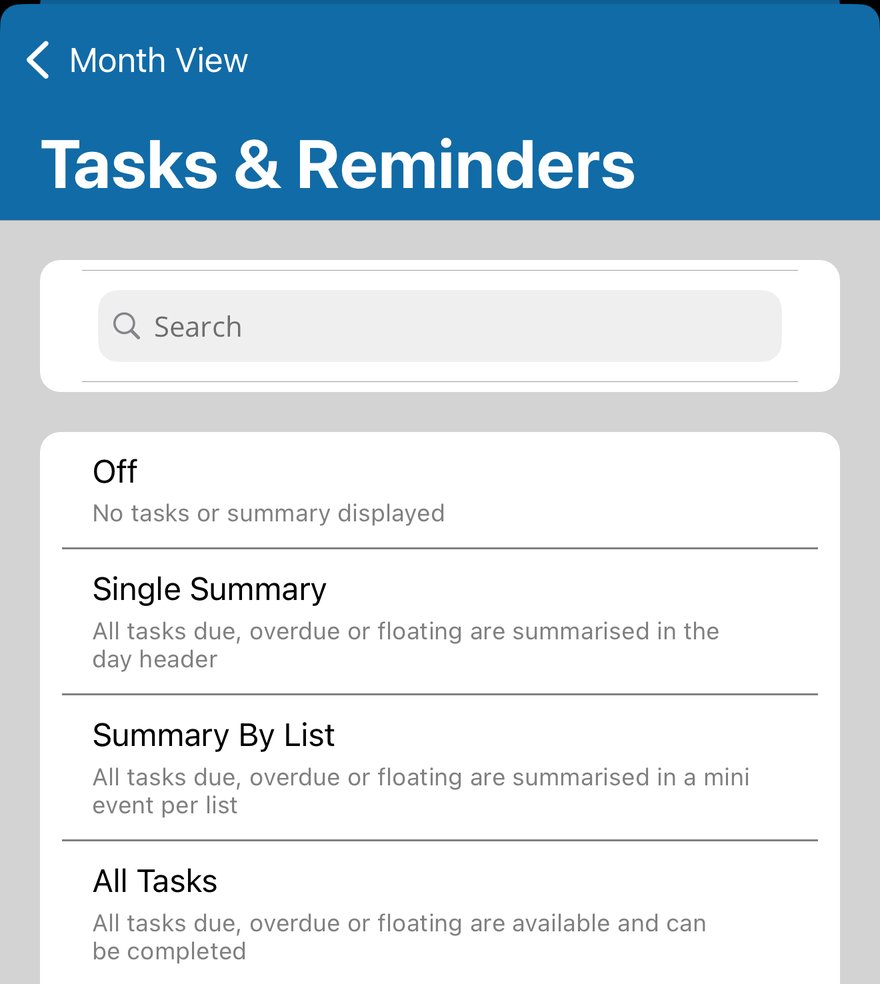
Single Summary
The counts for all your lists sit in the day header, next to the date. It takes the least room, so your events keep the space.
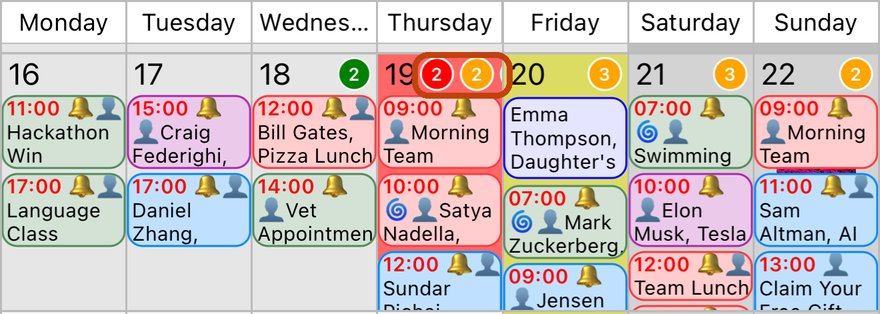
Summary By List
Each list gets its own small event on the day, with its counts and name, so you can see at a glance which list needs attention.
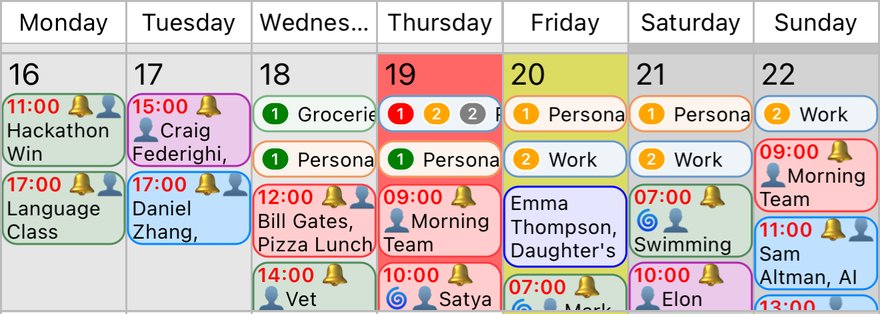
All Tasks
Every task shows on its day with a tick box, so you can see and complete them without leaving the month view.
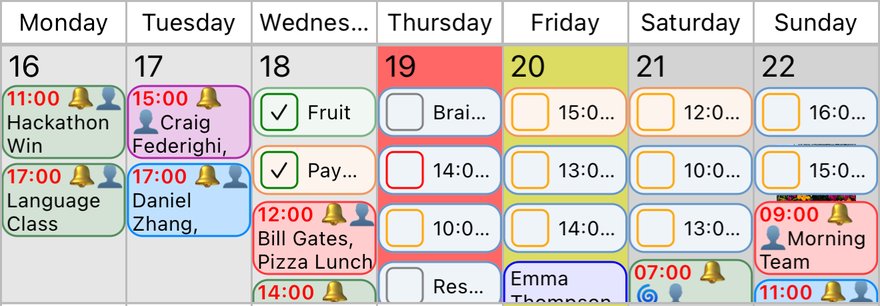
Choose Off to hide tasks from the month view.
Touch and hold the counts
Touch and hold the counts on a day to see all four colours with their numbers, and to deal with many tasks at once.
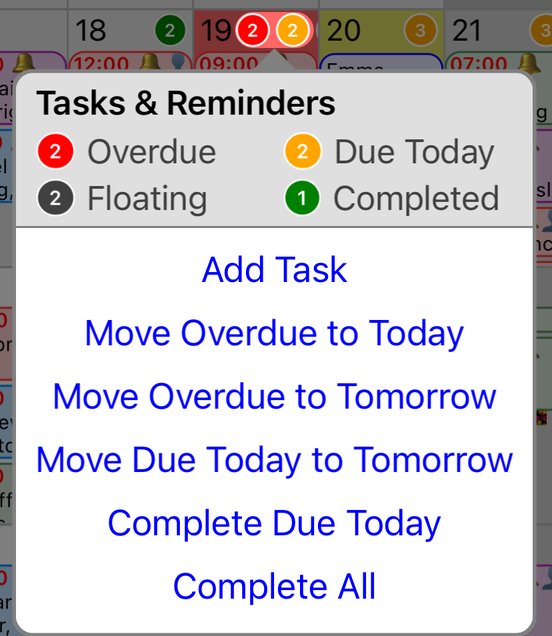
- Add Task adds a new task on that day.
- Move Overdue to Today or Move Overdue to Tomorrow moves every overdue task in one go.
- Move Due Today to Tomorrow moves today's tasks on a day.
- Complete Due Today ticks off today's tasks, and Complete All ticks off every task shown.
Open a list
- Tap the counts on a day. Task Lists opens, showing each list with its counts for that day.
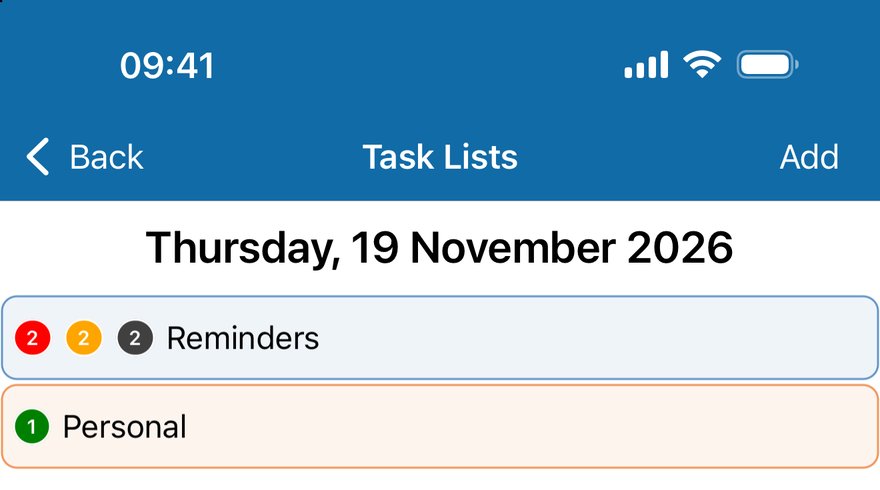
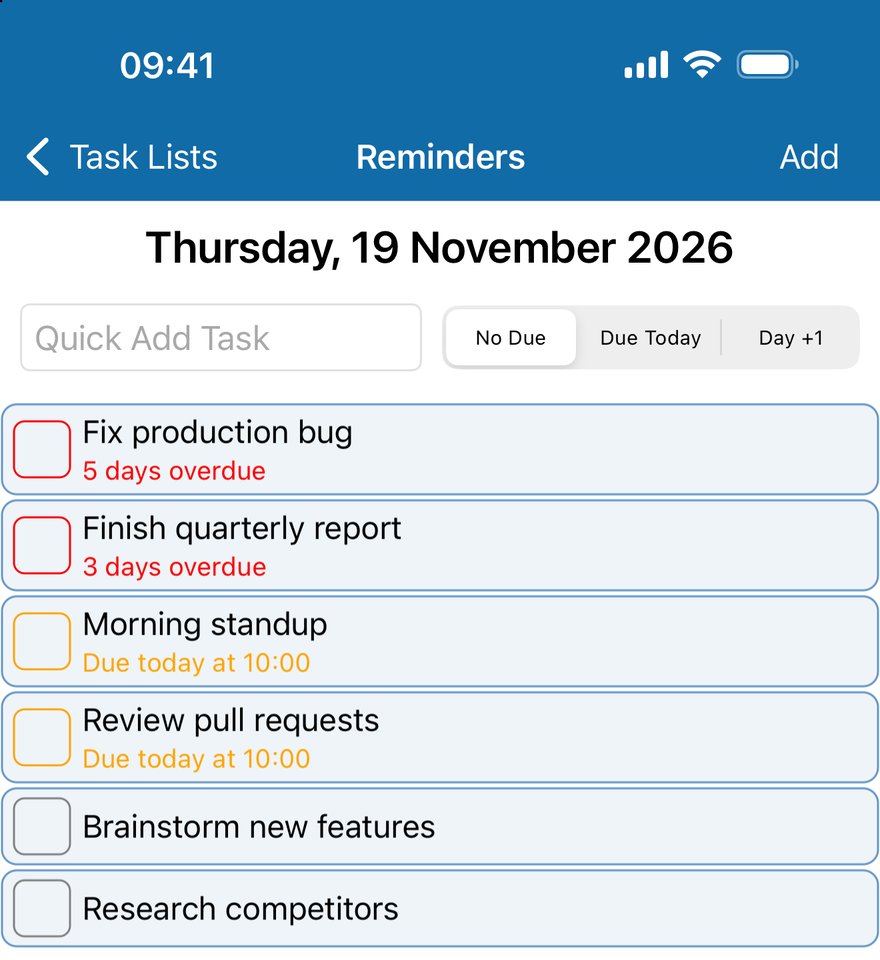
- Tap a list to see its tasks. Overdue tasks come first, then those due today, then floating tasks, each with a box in its colour.
Mark a task as complete
- Tap the box next to the task. It is ticked off and moves to Completed.
- Or touch and hold the task and tap Mark As Complete.
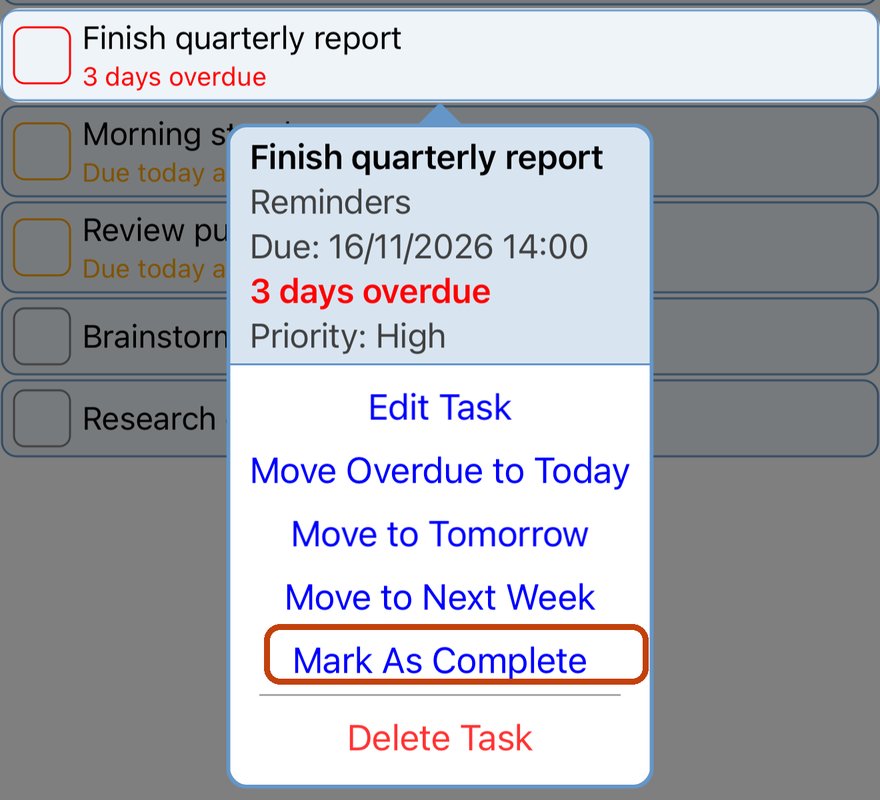
The same menu lets you Edit Task, move it to today, tomorrow or next week, or Delete Task. On a completed task it offers Mark As Incomplete instead.
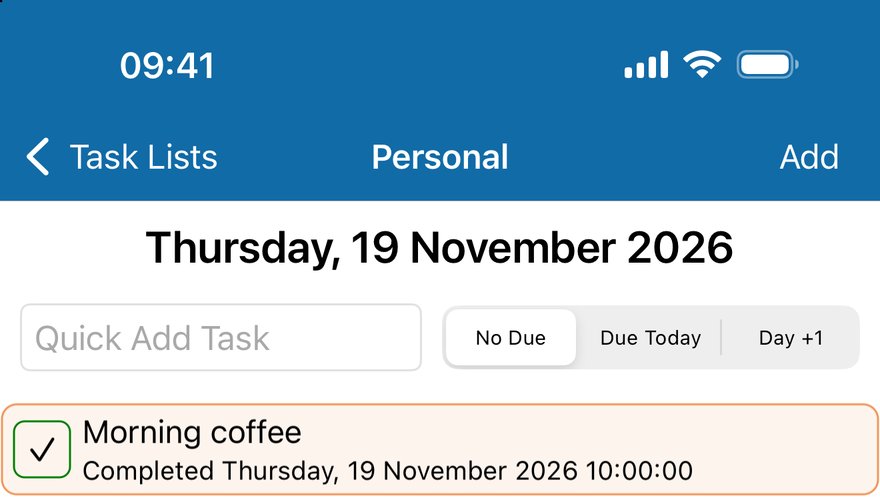
Completed tasks stay on the day you finished them, with a green tick.
Add a task
- Quick add: in a list, choose No Due, Due Today or Day +1, type the task in Quick Add Task and tap Done on the keyboard. You can keep typing to add more.
- With more detail: tap Add at the top of a list, choose Add Task after touching and holding the counts, or touch and hold the + button in the toolbar.
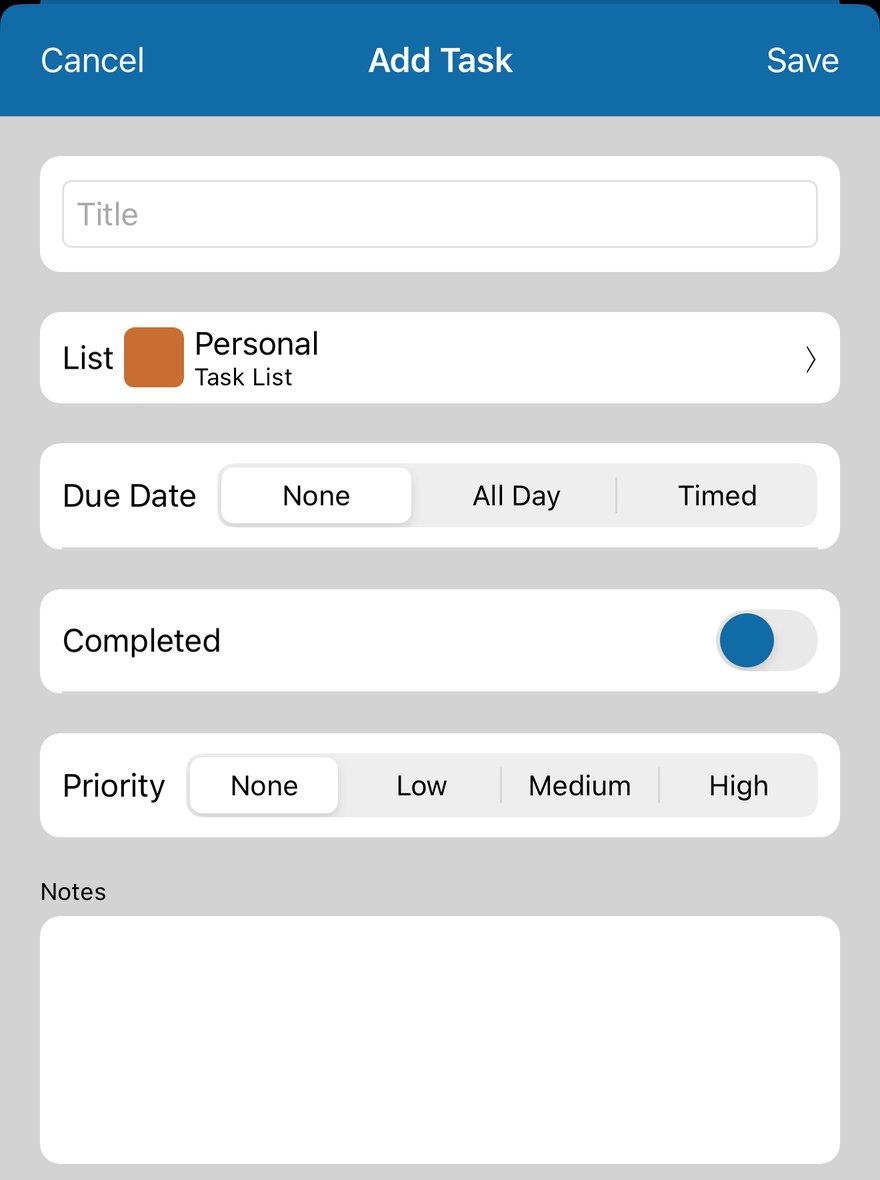
Give the task a title, pick its list, and set a due date (None makes it a floating task, All Day or Timed gives it a day), a priority and any notes. Tap Save.
Good to know
- Tasks are your iPhone's Reminders, so anything you add or tick off here also shows in the Reminders app, and on your other devices through iCloud.
- To choose which lists show, go to Settings > Task & Reminder Lists.
- The day, week and list views have their own Tasks & Reminders setting.
More app how to guides.