
Print the day, week, month or year view
You can print whatever view you are looking at: a day, a week, a month or, on iPad, a whole year on one page. Printouts include your events, day colours and day images.
Print a view
- Open the view you want to print and go to the day, week, month or year you want.
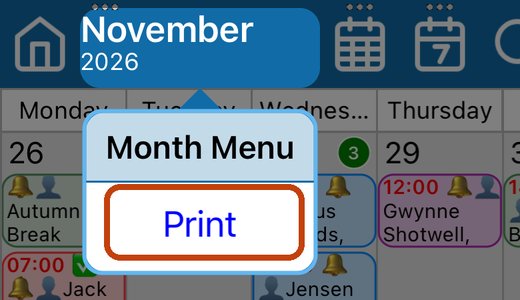
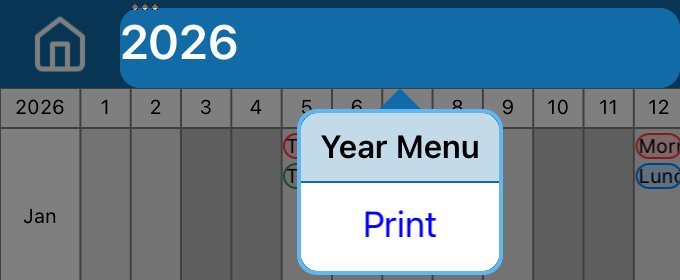
- Touch and hold the date at the top left of the toolbar (it has three dots above it). The menu for that view opens: Day Menu, Week Menu, Month Menu or Year Menu.
- Tap Print.
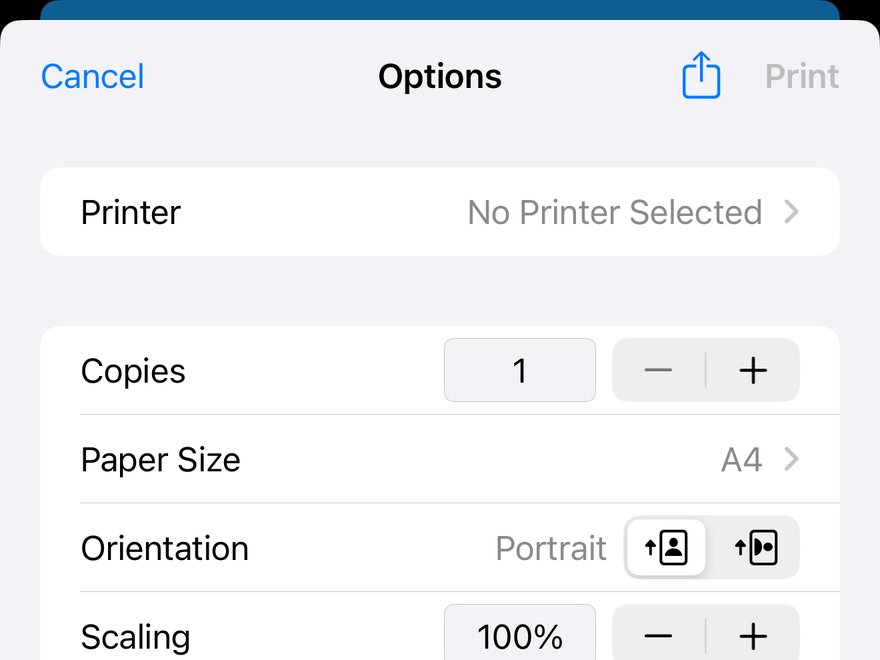
- Choose your printer, the number of copies, the Paper Size and the Orientation.
- Tap Print.
To see a printout more closely before printing, wait for the preview at the bottom to appear, then touch and hold it.
What each view prints
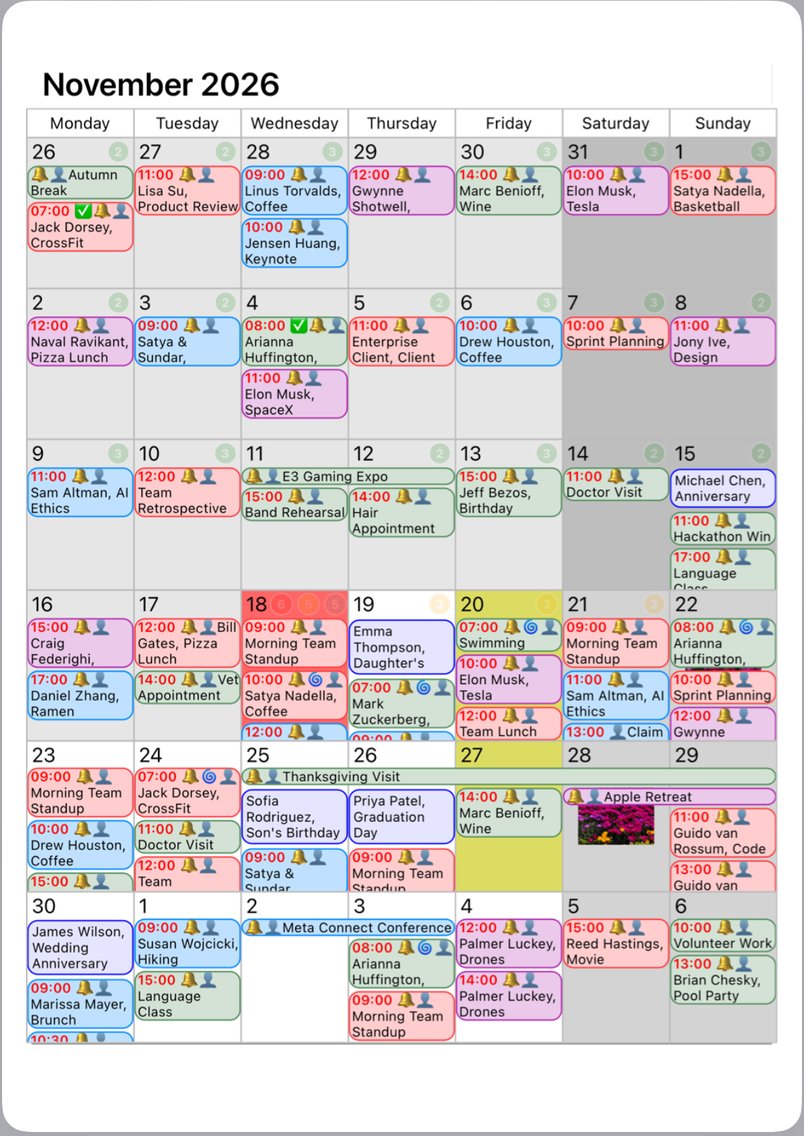
Month
The whole month on one page, with day colours and images.
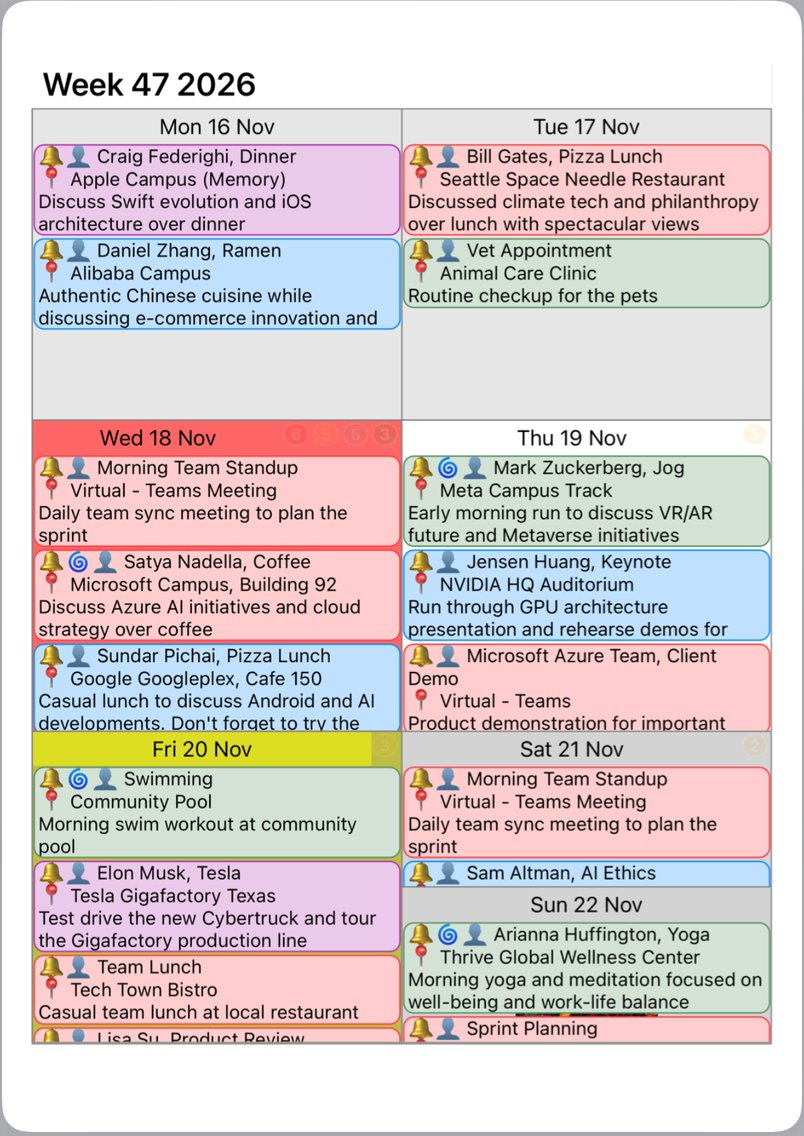
Week
The week you are looking at, with each day's events in full.
Day
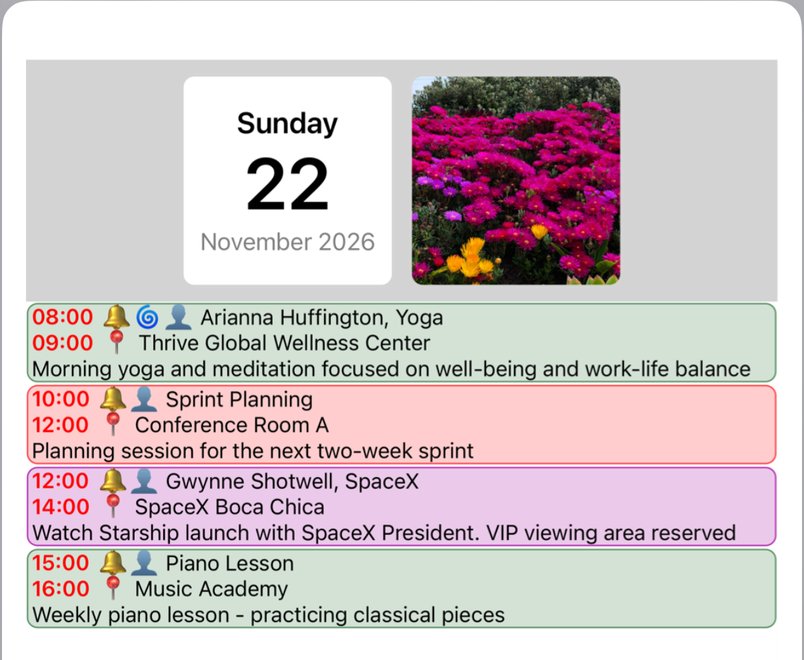
One day, with its date, image and all its events.
Year (iPad only)
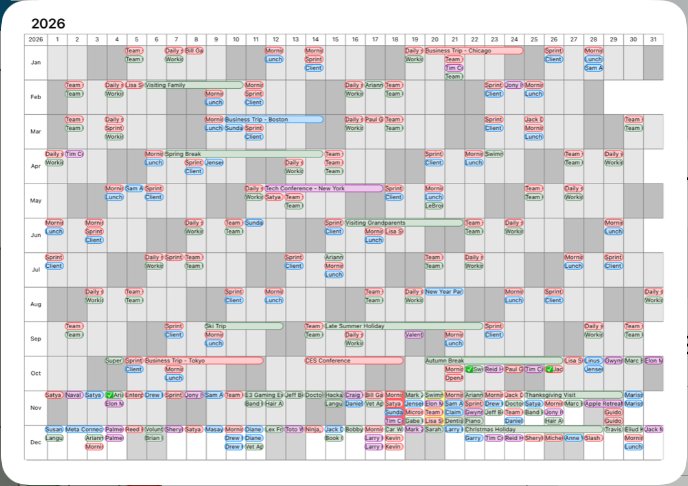
The year view is only on iPad. It prints the whole year on one page, with a row for each month.
For the year, choose A3 (or Tabloid) and Landscape if your printer takes it, so the text is bigger.
Good to know
- No printer? Tap the share button at the top of the print options to save the printout as a PDF, or send it to someone.
- Printing needs an AirPrint printer on the same Wi-Fi as your iPhone or iPad.
More app how to guides.