
Set a background colour for a day
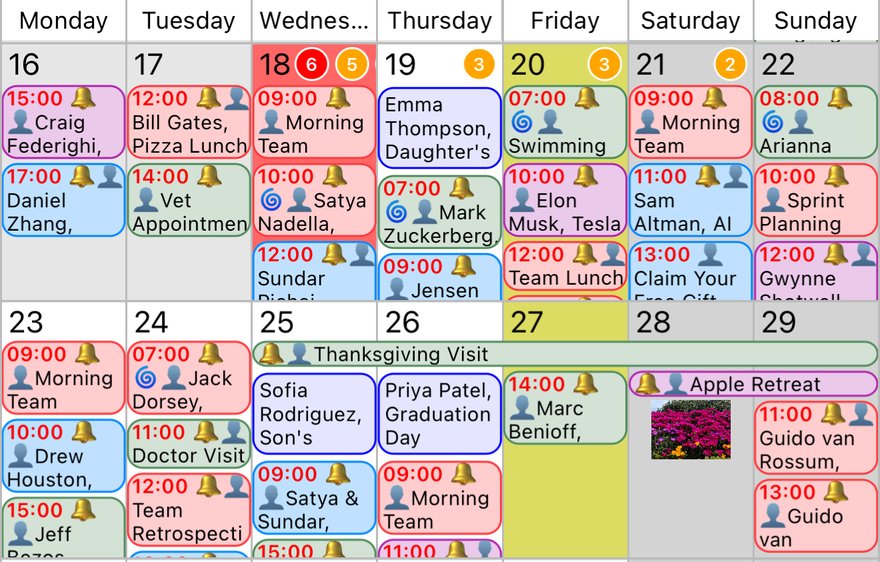
Give any day its own background colour so it stands out: holidays, days off, school term dates or anything else you want to spot at a glance.
Set a colour
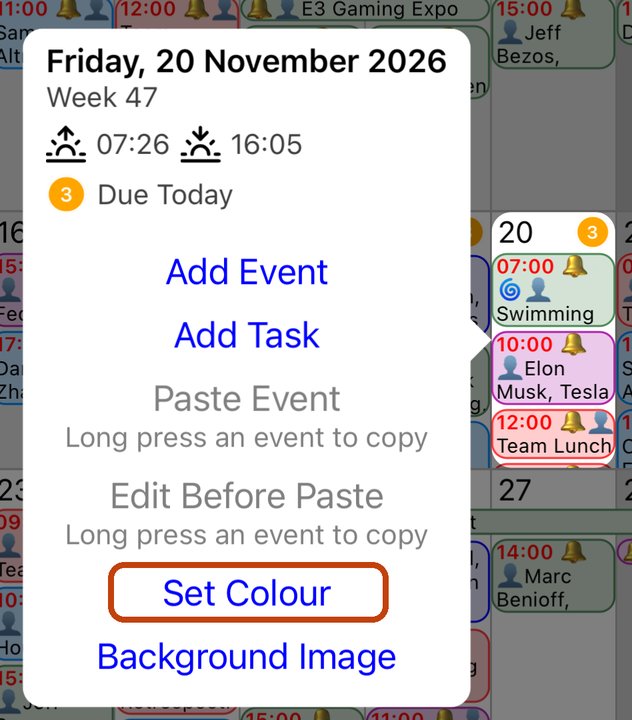
- Touch and hold the day's number in the month view, or the day's title in the week view.
- Tap Set Colour.
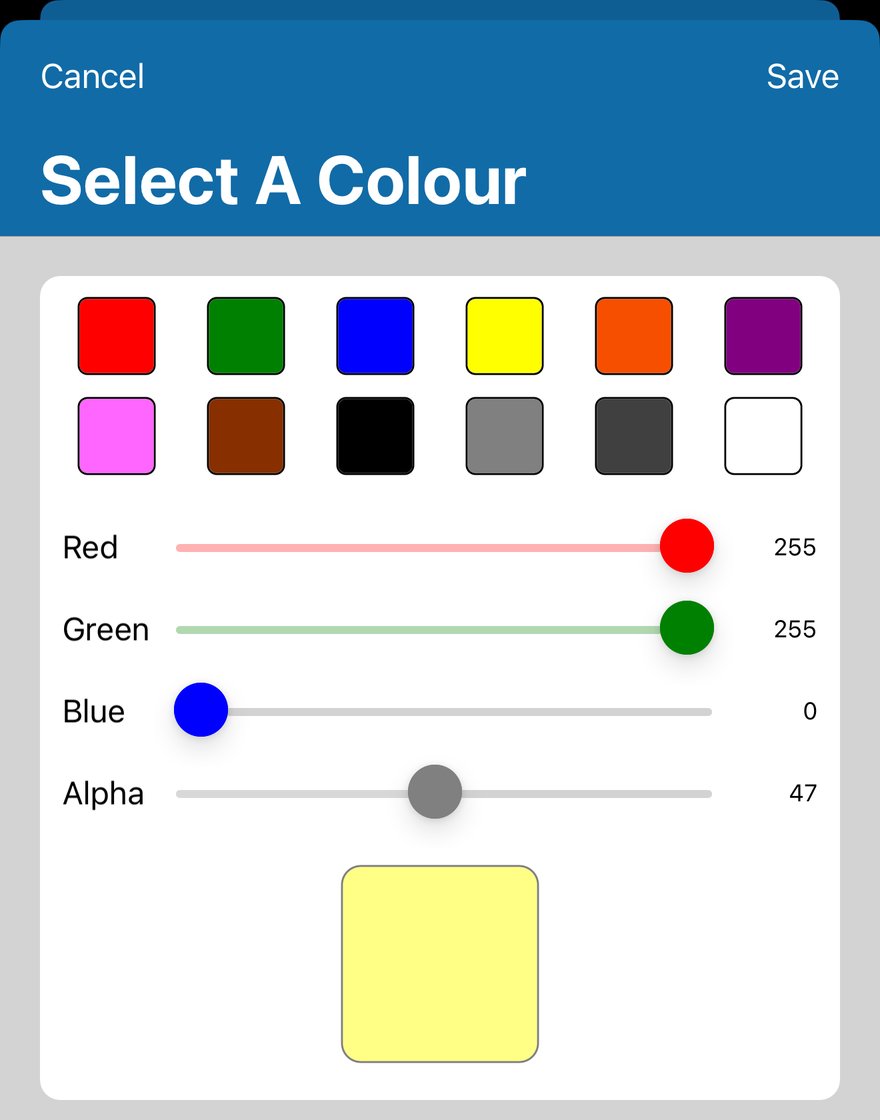
- Tap a colour, or set your own with the Red, Green and Blue sliders.
- Move Alpha down to make the colour paler, so events stay easy to read. Around 50 works well.
- Tap Save.
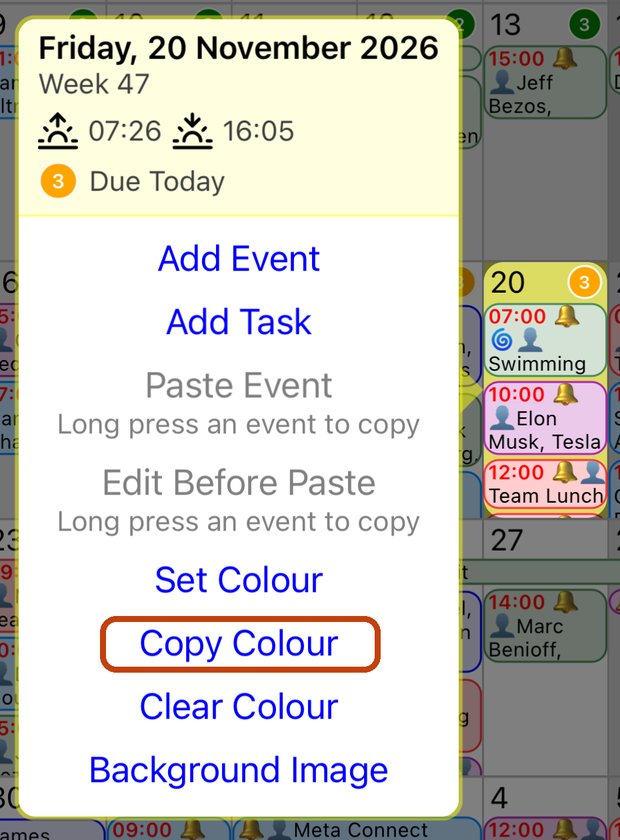
The day now has the colour as its background.

Use the same colour on other days
- Touch and hold the coloured day and tap Copy Colour.
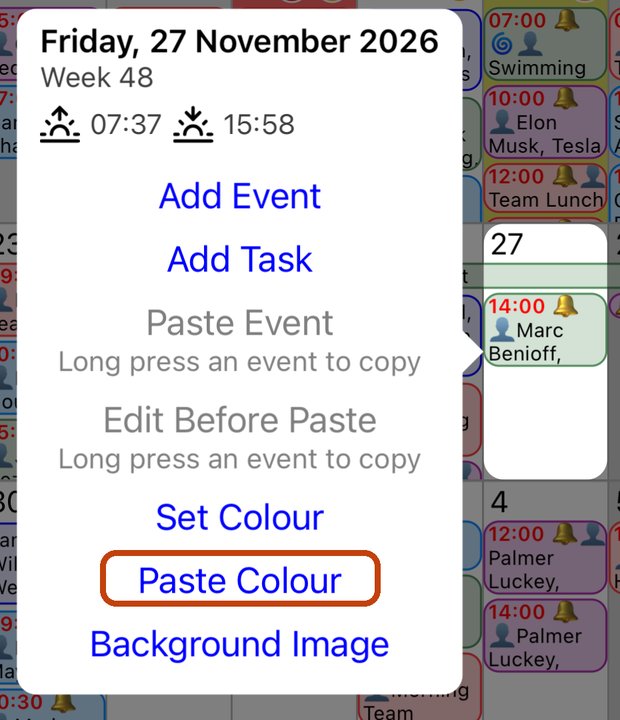
- Touch and hold another day and tap Paste Colour. Repeat for as many days as you like.
Remove a colour
- Touch and hold the day and tap Clear Colour.
Good to know
- Day colours show in the month, week and day views, and on printouts.
- You can also give a day a background image.
More app how to guides.