
Set a background image for a day
Put a photo on a day to make it easy to spot and more personal: a birthday, a holiday, a trip or a big match.
Set an image
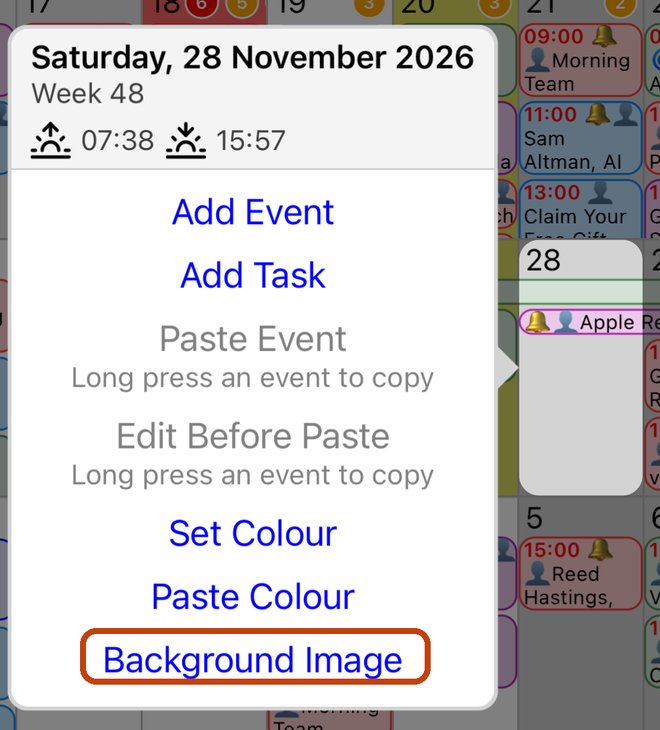
- Touch and hold the day's number in the month view, or the day's title in the week view.
- Tap Background Image.
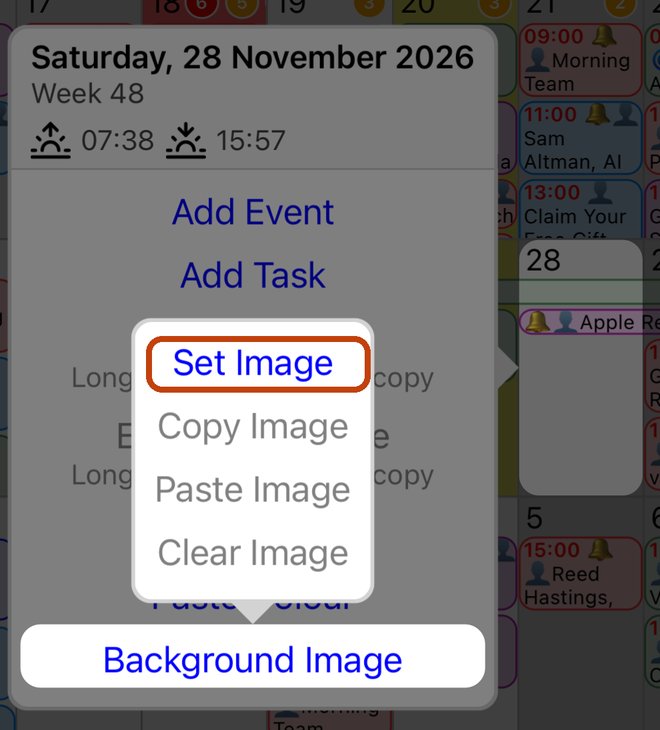
- Tap Set Image.
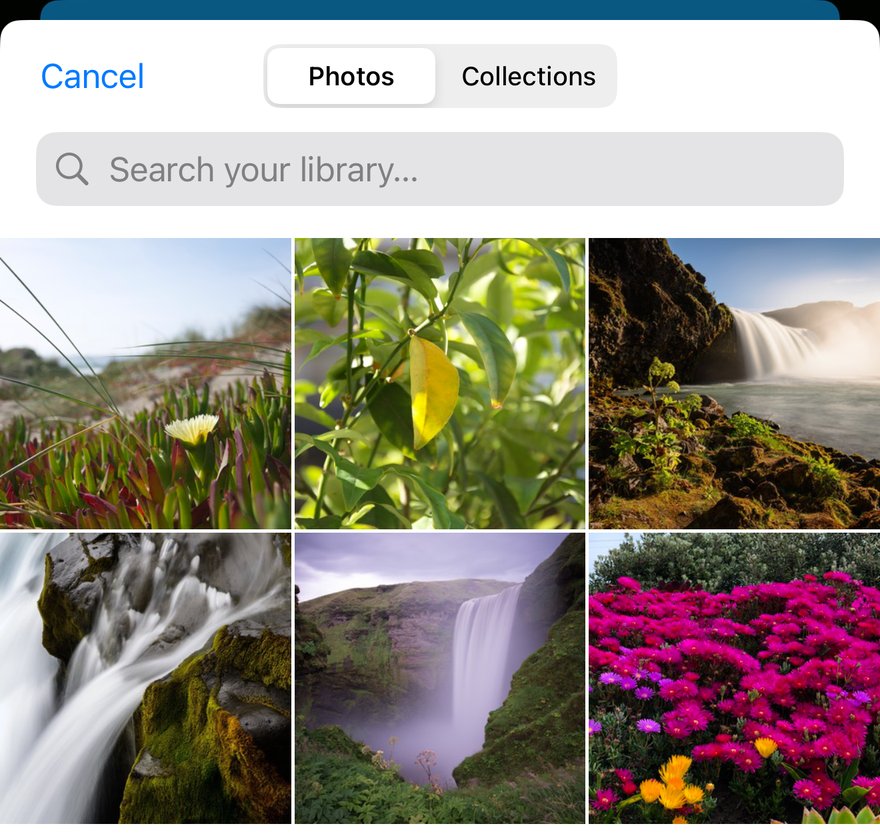
- Choose a photo from your library.
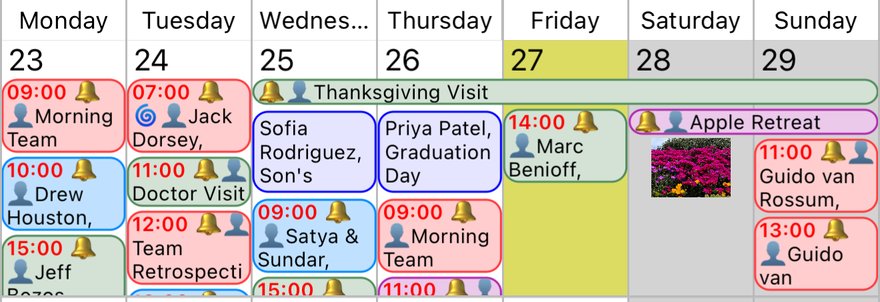
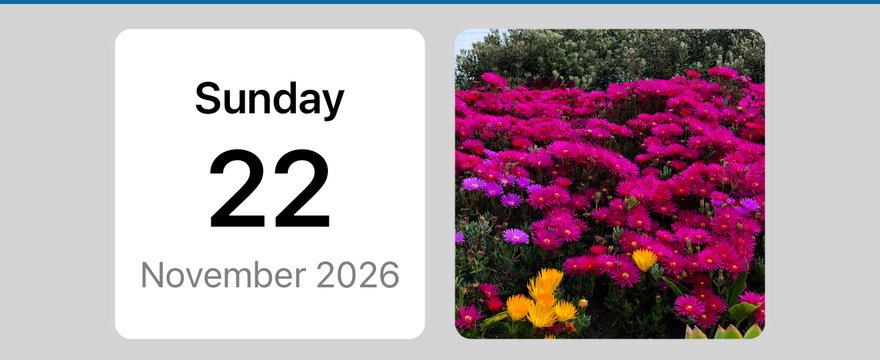
The photo appears on the day in the month view, and beside the date in the day view.
Use the same image on other days
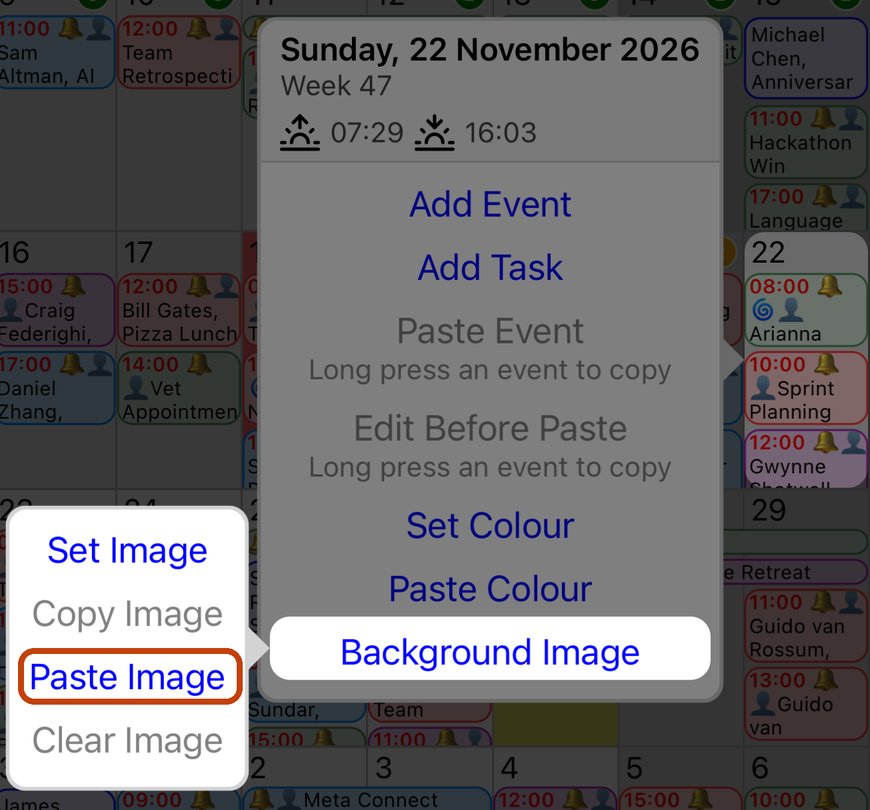
- Touch and hold the day with the image, tap Background Image, then Copy Image.
- Touch and hold another day, tap Background Image, then Paste Image.
Remove an image
- Touch and hold the day, tap Background Image, then Clear Image.
Good to know
- The app only sees the photos you pick, not your whole library.
- Day images show in the month, week and day views, and on printouts.
- You can also give a day a background colour.
More app how to guides.