
Make an event repeat
- Tap + in the toolbar to add an event, or tap an event to edit it.
- Tap Add Repeat Rule.
A simple repeat
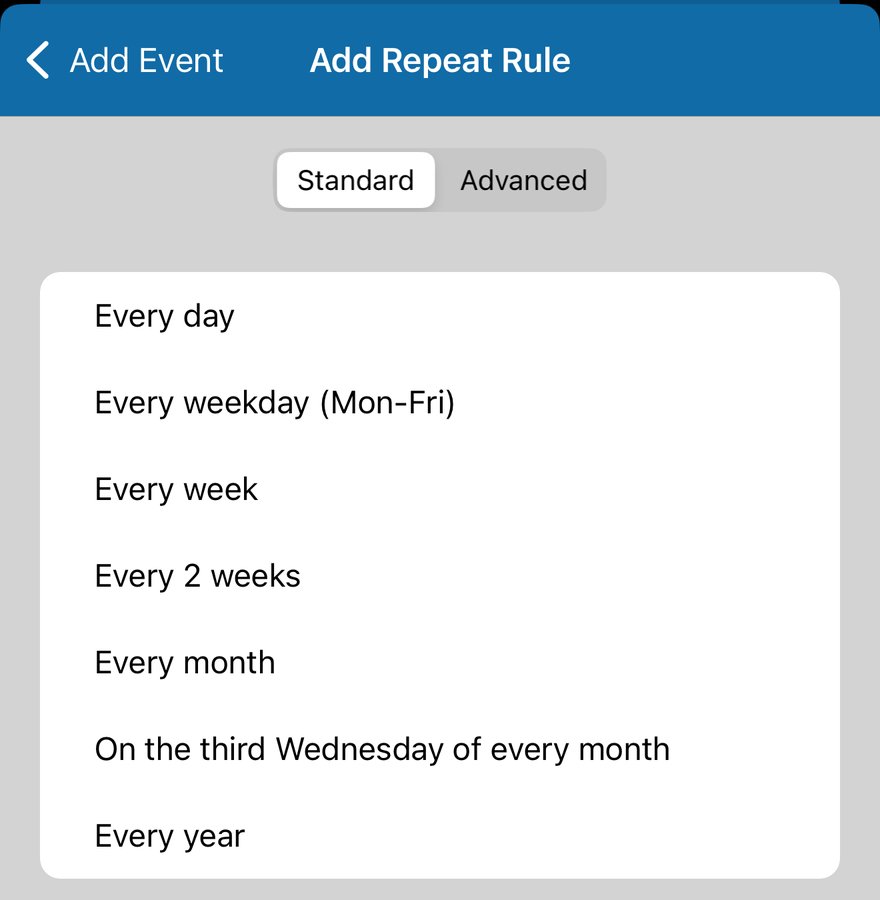
Tap one of the Standard rules. One of them is built from the event's date, such as the third Wednesday of every month.
Your own rule
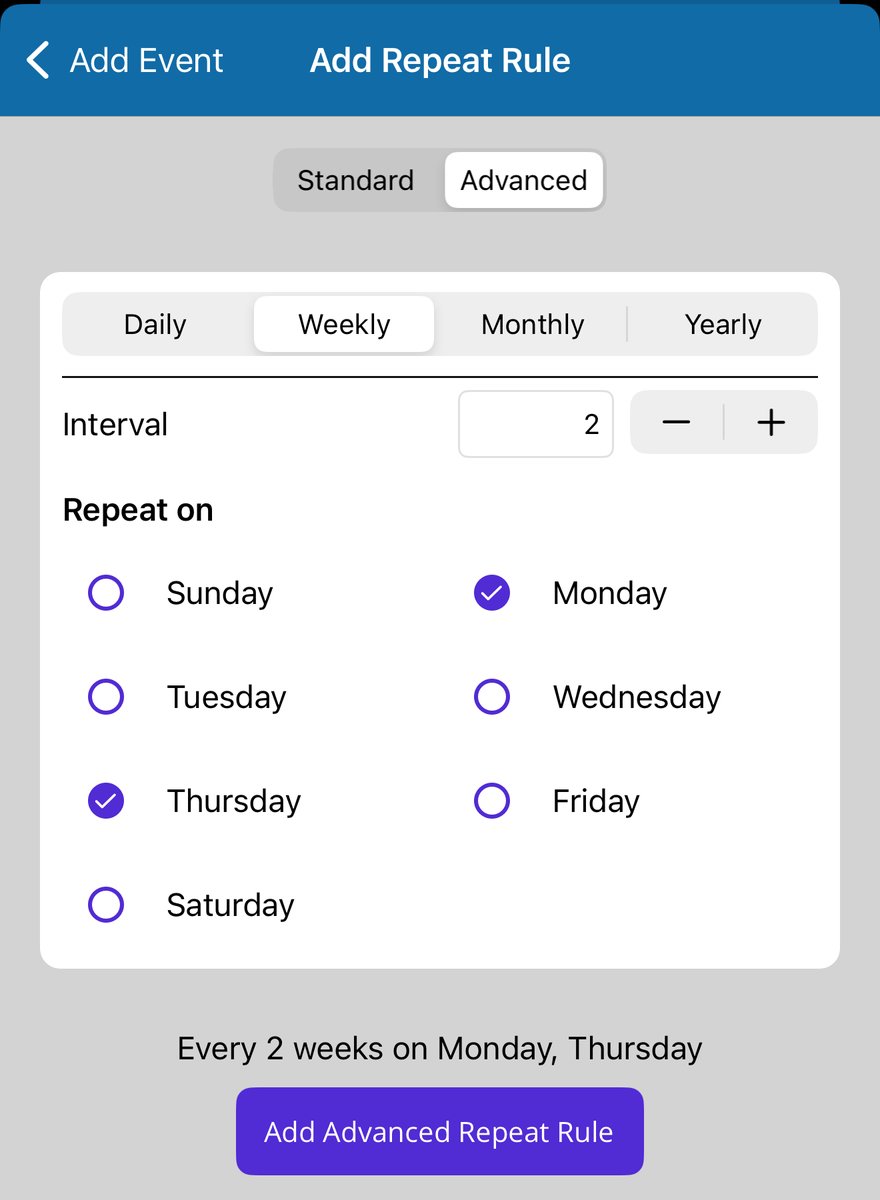
Tap Advanced, then choose Daily, Weekly, Monthly or Yearly. Interval sets how often: 2 means every other week, month or year. The line above the button always shows the rule you are building.
Weekly, on chosen days
Tick the days under Repeat on. Here, every 2 weeks on Monday and Thursday:
Monthly, on a weekday
Under Monthly Options, tap On Week & Day, then choose the week (First to Fourth, or Last) and the day. Here, every 3 months on the third Thursday:
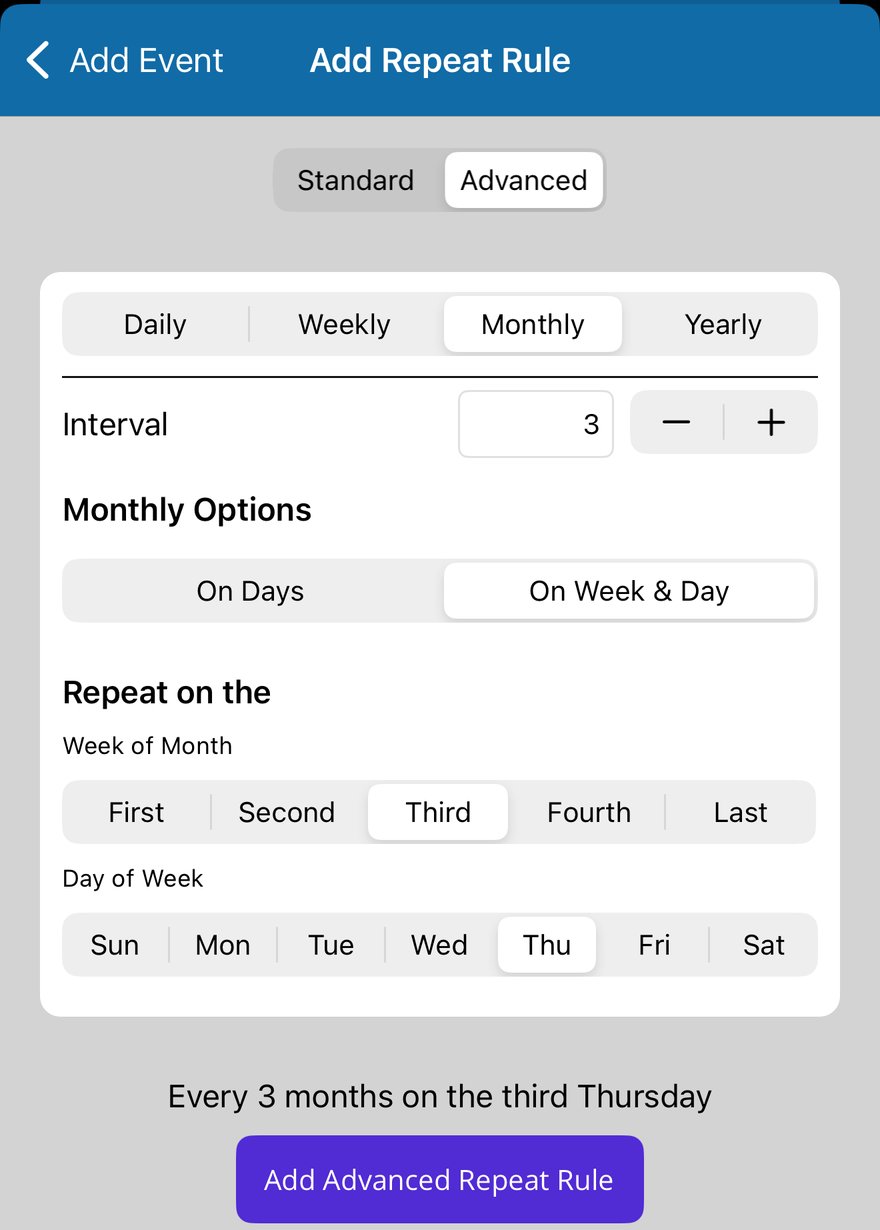
Or tap On Days to choose dates, such as the 1st and 15th of each month.
Yearly, in chosen months
Choose the months under Repeat in months, such as March and September every year.
When the rule is right, tap Add Advanced Repeat Rule.
Set an end date
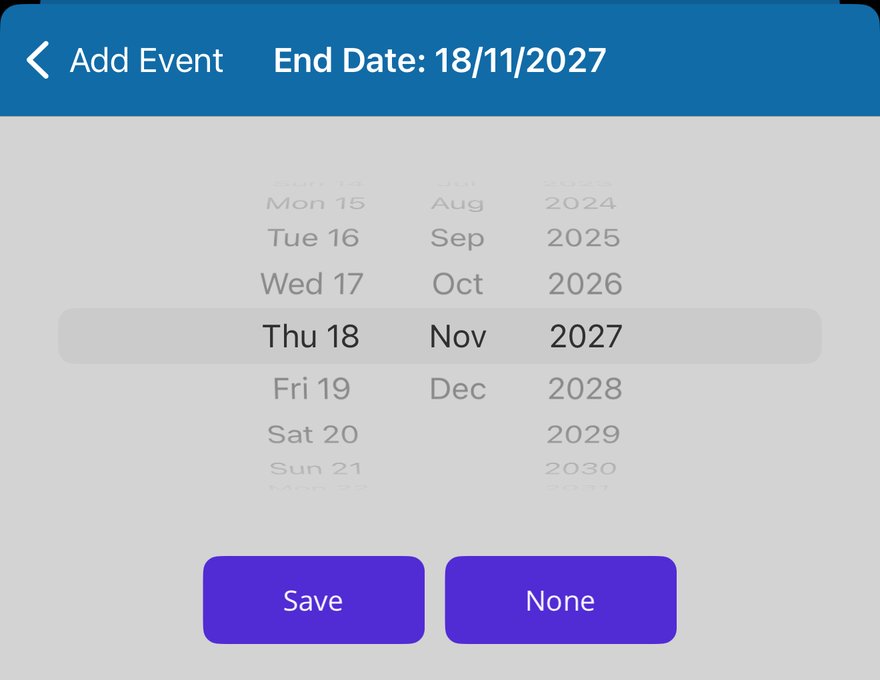
Repeats go on for ever unless you set an end date. Tap End Date: None under the rule.
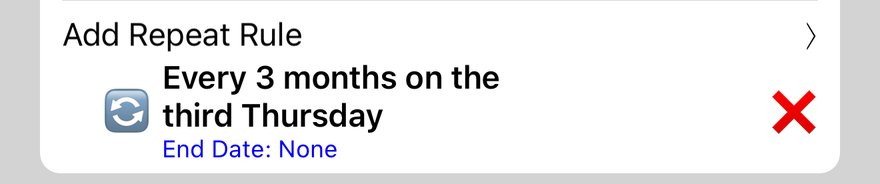
Choose the last date and tap Save. Tap None to remove an end date.
Finally, tap Save to save the event.
More app how to guides.