
See more of each event in the month view
The month view can fit more onto each day: small icons that show which events have alerts, repeat or have invitees, and titles that wrap onto a second or third line instead of being cut short.
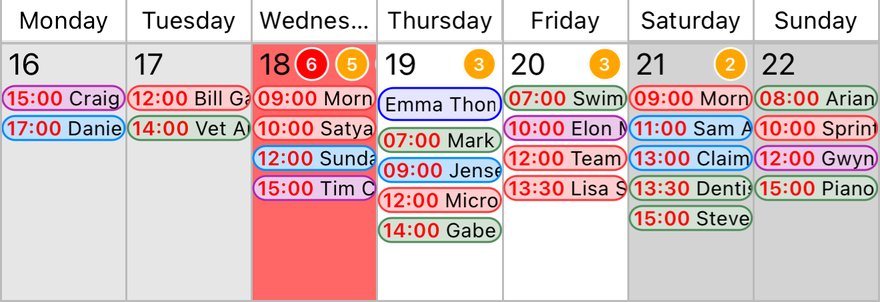
Before
With the standard settings, each event takes one line, so longer titles are cut off.
Change the settings
- Tap the Settings button (the cog) in the toolbar.
- Under View Settings, tap Month View.
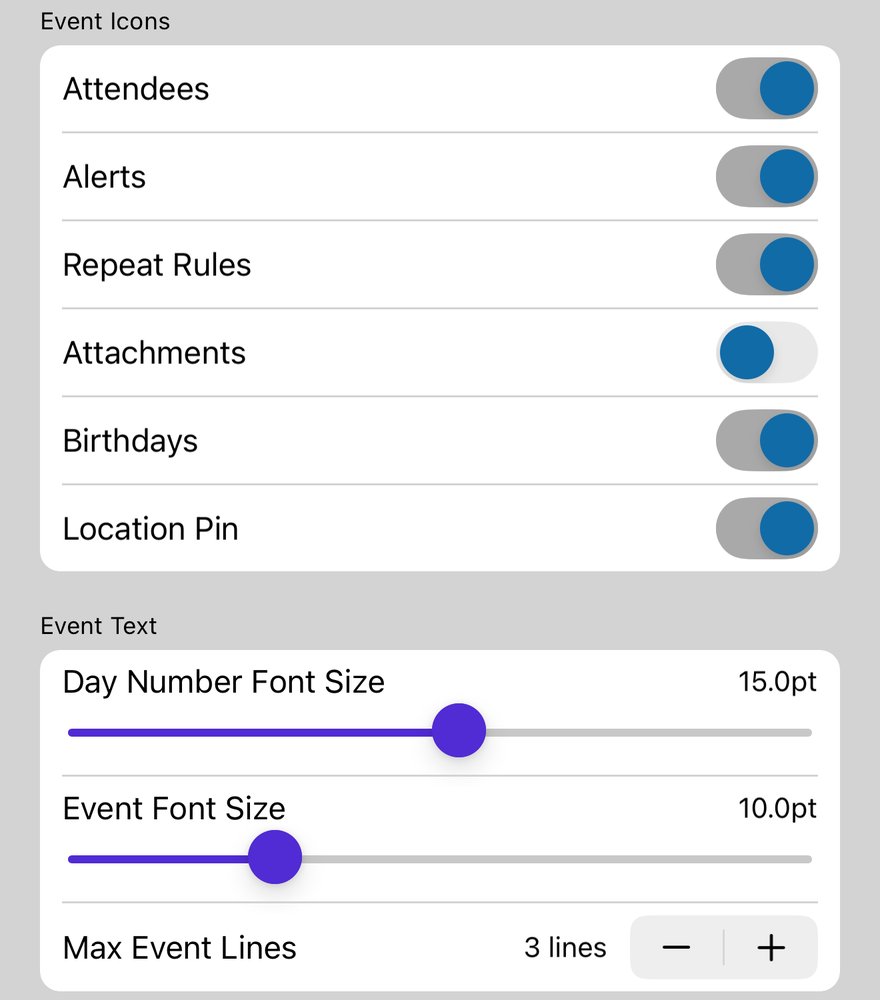
- Under Event Icons, switch on the icons you want: Attendees, Alerts, Repeat Rules, Attachments, Birthdays and Location Pin.
- Under Event Text, tap + next to Max Event Lines to let titles use up to that many lines. You can also make the text smaller with Event Font Size, so more fits.
- Tap Done, then Done again.
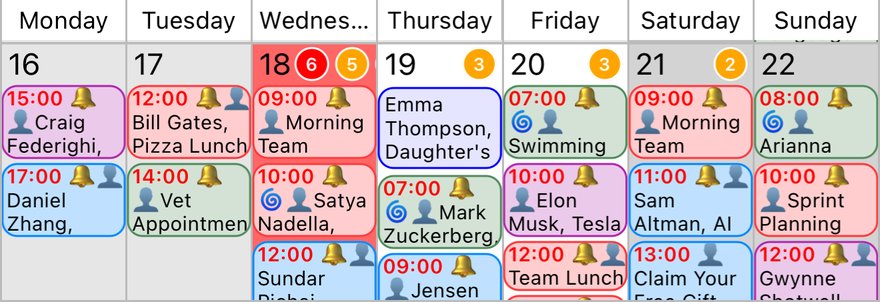
After
Icons appear before each title, and titles wrap over up to three lines.
More options
- Under Event Display you can also show each event's End Time, Location or Notes.
- The day, week and list views have their own settings, with the same choices.
More app how to guides.