
Move an event with cut and paste
Cut and paste moves an event to another day. It keeps its start time and length.
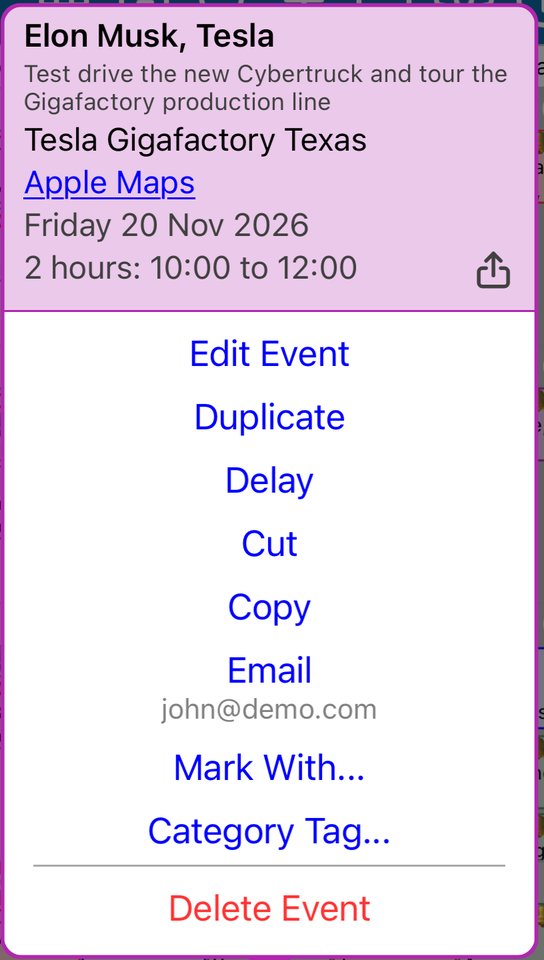
- Touch and hold the event, then tap Cut.
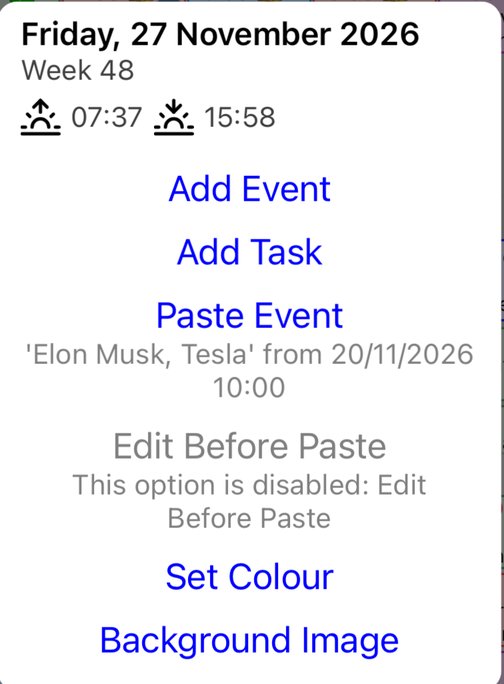
- Touch and hold the day you want to move it to.
- Tap Paste Event. The line under it shows which event you are pasting.
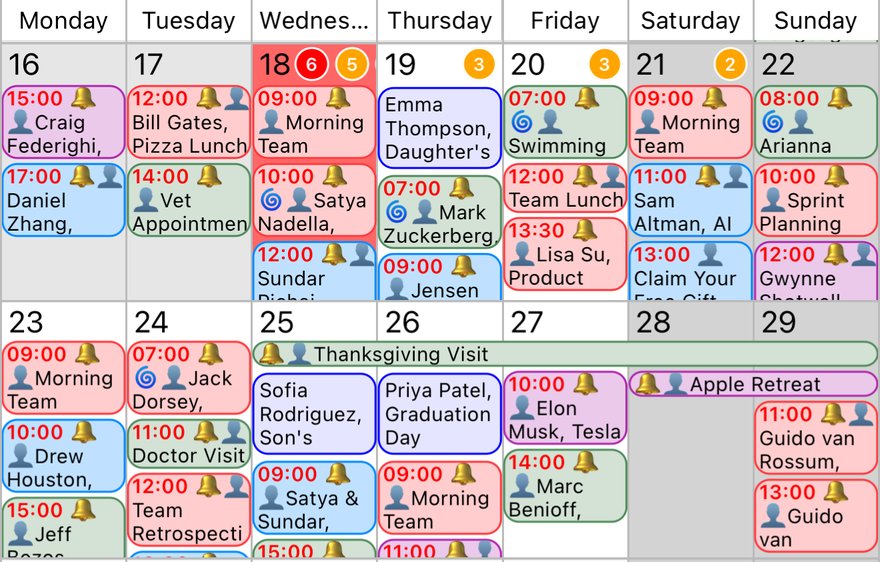
The event moves to the new day.
Copy instead of cut
- Tap Copy instead of Cut to leave the event where it is and paste a copy. You can paste the same copy onto as many days as you like.
- After Copy, Edit Before Paste opens the copy on the chosen day so you can change it before saving.
More app how to guides.